Five Minutes Setting up Plaxis for Python
Many tutorials online may be based on older versions of Plaxis. This post here is a tutorial to help new users of Plaxis to embark on using Python in Plaxis using Version 2023.2
First, load an example problem. This can be done quickly by downloading the Command Log File (Tutorial 06.p2dxlog).
https://communities.bentley.com/products/geotech-analysis/w/wiki/45558/plaxis-2d-tutorial-06-dry-excavation-using-a-tie-back-wall
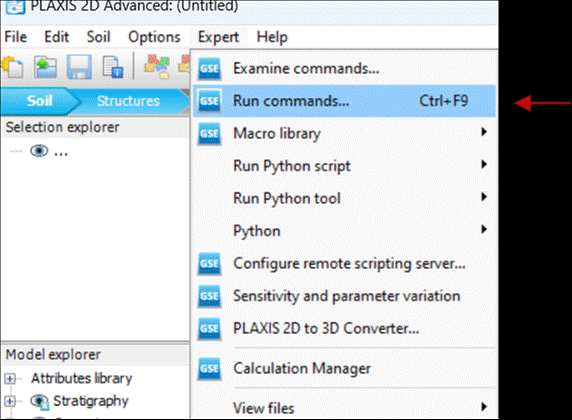
Then, run the commands by pasting the codes into the Plaxis pop up window.
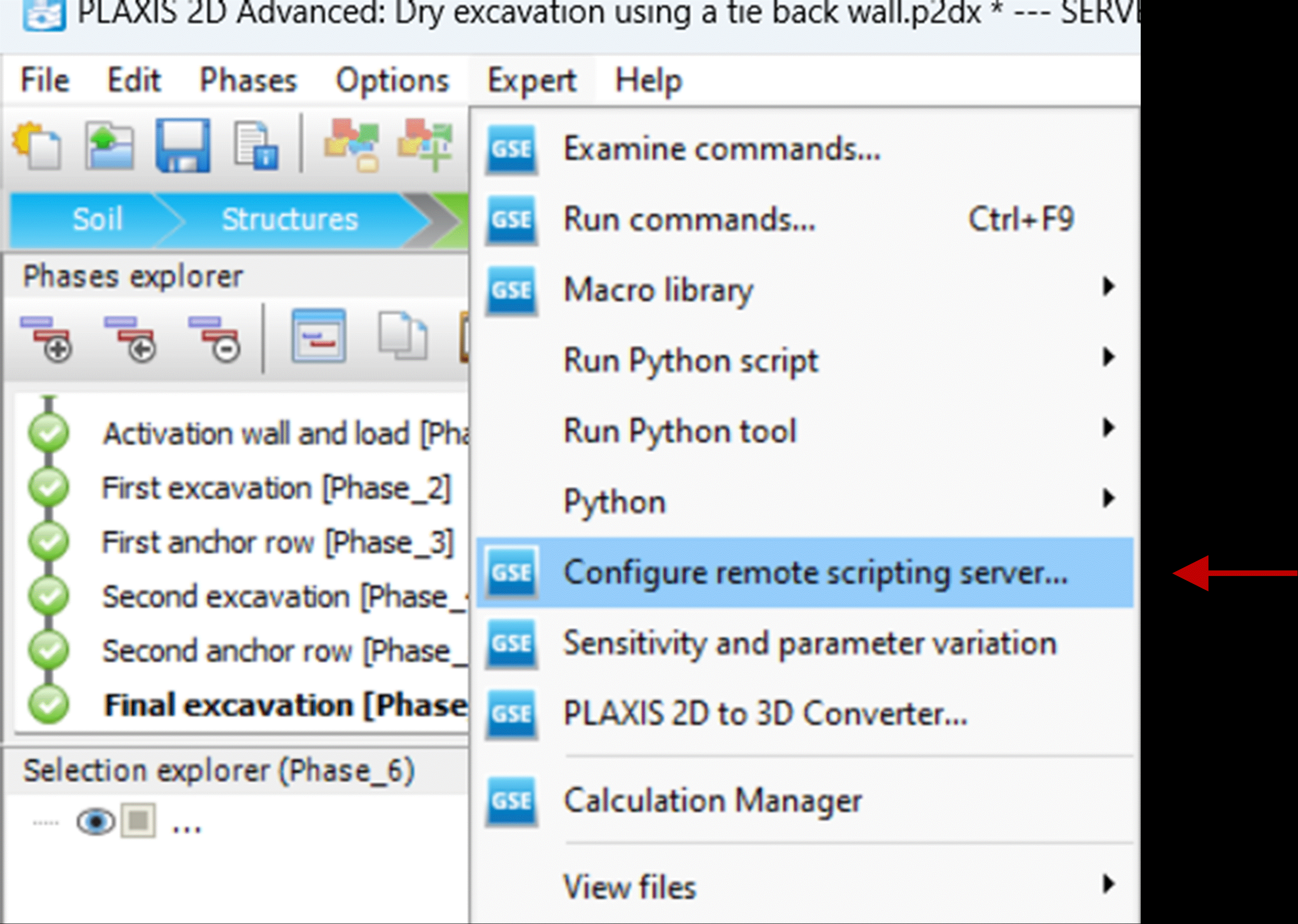
After the model is generated, configure Remote Python Scripting. Start the Server, and copy the Password in the command window.
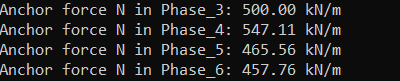
The Python script tutoriol offered by Plaxis extracts the Anchor Forces from the finite element analysis. To do this, open the Plaxis Python Editor. Paste the following python codes, using the headers from the Plaxis guidance (they are provided in separate links of guidance by Plaxis). Headers are required to connect to Plaxis's python server.
https://communities.bentley.com/products/geotech-analysis/w/wiki/46005/using-plaxis-remote-scripting-with-the-python-wrapper
https://communities.bentley.com/products/geotech-analysis/w/wiki/45453/output-scripting-example-get-anchor-force
Save the file in a desired directory. In this example, it is saved as 25Dec2023_ChristmasTutorial.py. Go to Plaxis's "Output Mode". Run the Python FIle You will get the following in the Command Prompt. The file will not run in the Input Mode.
Hope you enjoyed our Christmas tutorial!
